Change Dell iDRAC system name from Linux cli

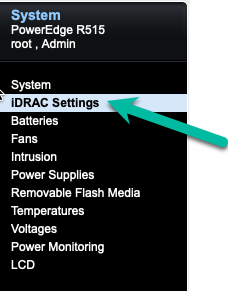
Make sure the shell interface is enabled through the iDRAC web interface. Log in and click on iDRAC settings on the left.
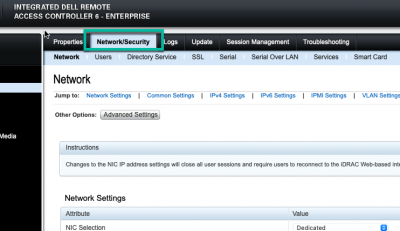
Click on the Network/Security tab.
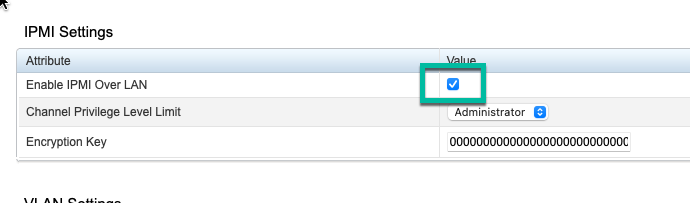
Scroll down and find the IPMI Settings. Make sure the Enable IPMI Over LAN box is checked.
Install ipmitool on another device or your workstation, so for Ubuntu 20.04 I used:
apt install ipmitool
Convert the name you want to set into hex values. For that used:
echo "new-hostname" | od -A n -t x1
That will output the string as hex digits.
Then you use the ipmitool command like this:
ipmitool -H <ip-address-of-dell-host> -U <username> -P <password> -I lanplus raw 0x06 0x58 0x02 0x00 0x05 0x0d 0x6e 0x65 0x77 0x2d 0x68 0x6f 0x73 0x74 0x6e 0x61 0x6d 0x65 0x0a
0x06 0x58 0x02 0x00 0x05 - this addresses the correct variable in the iDRAC, always the same.
0x0d - this is the number of bytes in the new hostname, in this case 13, in hex.
0x6e 0x65 0x77 0x2d 0x68 0x6f 0x73 0x74 0x6e 0x61 0x6d 0x65 0x0a - this is the hostname characters coded in hex from previous step.
The example above therefore sets the system name to "new-hostname".